

 |
| ------------------------------------------------------------------------------------------------------------------------------------------------------------------------------------------------------------------------------------------------------------------------------ |
| **Version**: 1.0.0 |
| **Type**: **Modern** - Shooter |
| **Updated**: 2025.06.27 |
| **Recoil Assist Powered by BEAM team**! |
| [**Known Requirements**](#known-requirements) |
M.O.D. Central, M.O.D. Pass Gamepack for the **Strikepack** **Dominator** / **Eliminator** controller adapter. This comprehensive instruction manual will guide you through all Gamepack features in sequence, ensuring an efficient learning experience.
|
| ------------------------------------------------------------------------------------------------------------------------------------------------------------------------------------------------------------------------------------------------------------------------------ |
| **Version**: 1.0.0 |
| **Type**: **Modern** - Shooter |
| **Updated**: 2025.06.27 |
| **Recoil Assist Powered by BEAM team**! |
| [**Known Requirements**](#known-requirements) |
M.O.D. Central, M.O.D. Pass Gamepack for the **Strikepack** **Dominator** / **Eliminator** controller adapter. This comprehensive instruction manual will guide you through all Gamepack features in sequence, ensuring an efficient learning experience.
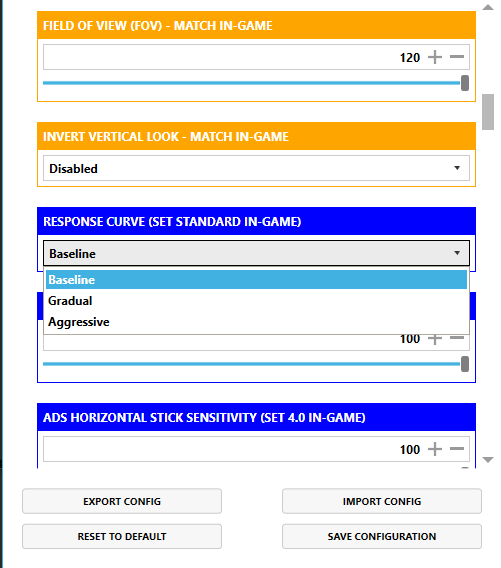 ***
These **blue settings** allow the Gamepack itself to apply an additional response curve and alteration to your aim sensitivity. **This is provided because very specific ****in**-**game**** settings are required for Recoil Assist to work correctly**, **listed below**:
***
**Horizontal Stick Sensitivity:** 4.0\
**Vertical Stick Sensitivity:** 4.0\
**Response Curve:** Standard\
**ADS Sensitivity Multiplier (Low/High Zoom):** 1.00\
**ADS Stick Swap:** Off\
**Aim Down Sight Behavior:** Hold\
**Controller Orientation:** Up\
**Custom Sensitivity Per Zoom:** Off\
**Depleted Ammo Weapon Switch:** Off\
**Interact/Reload Behavior:** Tap To Reload\
**Slide/Dive Behavior:** Hybrid\
**Sprint/Tactical Sprint Behavior:** Toggle
***
As you can see, Sensitivity: **4**.**0** is required, as is Response Curve: **Standard**. You are probably **not** going to like your sensitivity being this high, so that is where the Gamepack Config **blue settings** come into play. The information and images below depict the changes that will be made to Standard response curve. Note that the Gamepack sensitivity and response curves are **not** 1-to-1 with the game, so you will need to experiment, as the Standard response curve will become more cut off at lower sensitivities.
***
**For the Gamepack Response Curves**,
There are currently three **Response Curves** that we've created, though we are open to creating more if needed.
***
**Baseline** is neutral, default behavior (it respects the in-game Standard curve, which means any curvature will come from Standard, not Baseline).
***
These **blue settings** allow the Gamepack itself to apply an additional response curve and alteration to your aim sensitivity. **This is provided because very specific ****in**-**game**** settings are required for Recoil Assist to work correctly**, **listed below**:
***
**Horizontal Stick Sensitivity:** 4.0\
**Vertical Stick Sensitivity:** 4.0\
**Response Curve:** Standard\
**ADS Sensitivity Multiplier (Low/High Zoom):** 1.00\
**ADS Stick Swap:** Off\
**Aim Down Sight Behavior:** Hold\
**Controller Orientation:** Up\
**Custom Sensitivity Per Zoom:** Off\
**Depleted Ammo Weapon Switch:** Off\
**Interact/Reload Behavior:** Tap To Reload\
**Slide/Dive Behavior:** Hybrid\
**Sprint/Tactical Sprint Behavior:** Toggle
***
As you can see, Sensitivity: **4**.**0** is required, as is Response Curve: **Standard**. You are probably **not** going to like your sensitivity being this high, so that is where the Gamepack Config **blue settings** come into play. The information and images below depict the changes that will be made to Standard response curve. Note that the Gamepack sensitivity and response curves are **not** 1-to-1 with the game, so you will need to experiment, as the Standard response curve will become more cut off at lower sensitivities.
***
**For the Gamepack Response Curves**,
There are currently three **Response Curves** that we've created, though we are open to creating more if needed.
***
**Baseline** is neutral, default behavior (it respects the in-game Standard curve, which means any curvature will come from Standard, not Baseline).
 ***
**Gradual** is gentle, slower ramp-up, controlled.

***
**Aggressive** is fast, sharper response, twitch.

{% endhint %}
***
### Match Settings
{% hint style="warning" %}
In the Gamepack Config, make sure **all orange** "**MATCH IN**-**GAME**" **settings** closely **match** your in-game settings. These settings are important to the proper functioning of **M**.**O**.**D**.s (**M**acros **O**n **D**emand). Individual "MATCH IN-GAME" buttons will **only** apply when your Button Layout is set to "**Custom**" in the Gamepack Config.
{% endhint %}
***
### Save Config & Slots
{% hint style="success" %}
"**Save Configuration**" when you are done with Gamepack Setup or any other changing of Gamepack Config settings. Following this, "**Save Slots to Device**" to install the Gamepack to the Strikepack device. This will also update all installed Gamepacks to their latest version.
{% endhint %}
***
***
**Gradual** is gentle, slower ramp-up, controlled.

***
**Aggressive** is fast, sharper response, twitch.

{% endhint %}
***
### Match Settings
{% hint style="warning" %}
In the Gamepack Config, make sure **all orange** "**MATCH IN**-**GAME**" **settings** closely **match** your in-game settings. These settings are important to the proper functioning of **M**.**O**.**D**.s (**M**acros **O**n **D**emand). Individual "MATCH IN-GAME" buttons will **only** apply when your Button Layout is set to "**Custom**" in the Gamepack Config.
{% endhint %}
***
### Save Config & Slots
{% hint style="success" %}
"**Save Configuration**" when you are done with Gamepack Setup or any other changing of Gamepack Config settings. Following this, "**Save Slots to Device**" to install the Gamepack to the Strikepack device. This will also update all installed Gamepacks to their latest version.
{% endhint %}
***
 **HOLDING** **MAPPING BUTTON #1 (Top Left)**,
  **TAP ACTION BUTTON #2** or **#1**.
***
**Strikepack Dominator**: While **HOLDING MAPPING BUTTON #1 (Top Left)**, **TAP RIGHT PADDLE** or **LEFT PADDLE**.
***
The Strikepack Gearhead Eyes will flash **Green &**** White ****on Xbox**® / **Blue &**** White ****on PlayStation**®. **While Mapping Button #1 remains held**, a single top LED will be lit to indicate the currently selected Gamepack slot, numbered from left to right.
***
**When Mapping Button #1 is released**, the top LEDs will stop indicating the Gamepack slot number. Depending on the Gamepack, they may display Gamepack-related indicators instead. DO NOT confuse this with the slot number.
{% endhint %}
***
**TAP ACTION BUTTON #2** or **#1**.
***
**Strikepack Dominator**: While **HOLDING MAPPING BUTTON #1 (Top Left)**, **TAP RIGHT PADDLE** or **LEFT PADDLE**.
***
The Strikepack Gearhead Eyes will flash **Green &**** White ****on Xbox**® / **Blue &**** White ****on PlayStation**®. **While Mapping Button #1 remains held**, a single top LED will be lit to indicate the currently selected Gamepack slot, numbered from left to right.
***
**When Mapping Button #1 is released**, the top LEDs will stop indicating the Gamepack slot number. Depending on the Gamepack, they may display Gamepack-related indicators instead. DO NOT confuse this with the slot number.
{% endhint %}
***


 **VIEW**/**ACTIVATOR** is **HELD**,
  **LEFT TRIGGER** can be **TAPPED** to change the **ACTIVE Loadout**. Stick to Loadout 1 when you are first starting out:

 **HOLDING** **ACTIVATOR**, **TAP**
  :
:

 **TOUCHPAD**/**ACTIVATOR** is **HELD**,
  **LEFT TRIGGER** can be **TAPPED** to change the **ACTIVE Loadout**. Stick to Loadout 1 when you are first starting out:

 &
&  :
:
 **HOLDING** **ACTIVATOR**, **TAP**
  :
:
 **HOLD** your **CROUCH** button to slide, then **RELEASE** to cancel your slide. Throw off your opponent's aim and quickly get back into the fight. |
***
| Dive Sprint (Paddle Button M.O.D.) |
| ----------------------------------------------------------------------------------------------------------------------------------------------------------------------------------------------------------------------------------------------------------------------------- |
| While **SPRINTING FORWARD**, **TAP** the **PADDLE BUTTON** to dive, and if you **KEEP MOVING FORWARD**, you will sprint to immediately get up. |
***
| Hold Snake (Paddle Button M.O.D.) |
| --------------------------------------------------------------------------------------------------------------------------------------------------------------------------------------------------------------------------------------------------------------------------------------------------------------------------------------------------------------------------------------------------------------------------------------------------------------------------------------------------------------------------------------------------------------------------------------------------------------------------------------------------------------------------------------------------------------------------------------------------------------------------------------------------------------------------------------------------------------------------------------------------------------------------------------- |
|
**HOLD** your **CROUCH** button to slide, then **RELEASE** to cancel your slide. Throw off your opponent's aim and quickly get back into the fight. |
***
| Dive Sprint (Paddle Button M.O.D.) |
| ----------------------------------------------------------------------------------------------------------------------------------------------------------------------------------------------------------------------------------------------------------------------------- |
| While **SPRINTING FORWARD**, **TAP** the **PADDLE BUTTON** to dive, and if you **KEEP MOVING FORWARD**, you will sprint to immediately get up. |
***
| Hold Snake (Paddle Button M.O.D.) |
| --------------------------------------------------------------------------------------------------------------------------------------------------------------------------------------------------------------------------------------------------------------------------------------------------------------------------------------------------------------------------------------------------------------------------------------------------------------------------------------------------------------------------------------------------------------------------------------------------------------------------------------------------------------------------------------------------------------------------------------------------------------------------------------------------------------------------------------------------------------------------------------------------------------------------------------- |
| Combining a crouching & sprinting technique, you can peek from cover quickly & safely, seamlessly transition between positions, and even manually strafe from side to side to be more difficult to hit.
HOLD the PADDLE BUTTON to Snake: Designed for taller cover; it will switch between going prone & almost standing.
Horizontal strafing will temporarily suspend Snake, keeping you crouched or prone to let you control when & where to peek. HOLD your RELOAD button to remain prone & safe from enemy fire while reloading.
**TAP** the **PADDLE BUTTON** to slide & cancel in a single movement. Throw off your opponent's aim and quickly get back into the fight. |
***
| Toggle Snake (Paddle Button M.O.D.) |
| --------------------------------------------------------------------------------------------------------------------------------------------------------------------------------------------------------------------------------------------------------------------------------------------------------------------------------------------------------------------------------------------------------------------------------------------------------------------------------------------------------------------------------------------------------------------------------------------------------------------------------------------------------------------------------------------------------------------------------------------------------------------------------------------------------------------------------------------------------------------------------------------------------------------------------------------------------------------------------------------------------------------------------------------------------------------------------------------------------------------------------------------------------------------------------------------------------------------------------------------------------------------------------------------------------------------------------------------------------------------------------------------------------------------------------------------------------------------------------------------------------------------------------------------------------------------------------------------------------------------------------------------------------------------------------------------------------------------------------------------------------------------------------------------------------------------------------------------------------------------------------------------------------------------------------------------------------------------------------------------------------------------------------------------------------------------------------------------------------------------------------------------------------------------------------------------------------------------------------------------------------------------------------------------------------------------------------------------------------------------------------------------------------------------------------------------------------------------------------------------------------------------------------------------------------------------------------------------------------------------------------------------------------------------------------------------------------------------------------- |
| Combining a crouching & sprinting technique, you can peek from cover quickly & safely, seamlessly transition between positions, and even manually strafe from side to side to be more difficult to hit.
QUICKY TAP & RELEASE the PADDLE BUTTON to seamlessly transition to Crouch Snake (Heavy Rumble): Designed for taller cover; it will switch between crouching & standing. You can TAP the PADDLE BUTTON again to toggle OFF Crouch Snake.
HOLD the PADDLE BUTTON to seamlessly transition to Prone Snake (2 Heavy Rumbles): Designed for shorter cover; it will switch between prone & crouching. You can HOLD the PADDLE BUTTON again to toggle OFF Prone Snake.
PRESSING VIEW/TOUCH ACTIVATOR will always toggle OFF Toggle Snake, regardless of current position.
Horizontal strafing will temporarily suspend Toggle Snake, keeping you crouched or prone to let you control when & where to peek. HOLD your RELOAD button to remain prone & safe from enemy fire while reloading.